Getting started — Findit Figma
Open the file
Section titled “Open the file”Your purchase gives you the Findit Figma file in one of two forms:
- A duplicate link. Open it while signed in to Figma and choose Duplicate (or Open in Figma). A copy lands in your Drafts; move it to a team or project from the file menu.
- A
.figfile. In Figma, go to your Drafts or a project, then Import (or drag the file onto the Figma window).
Either way the copy is yours: edit it freely and invite your team. A free Figma plan is enough to open and edit it.
Start with the Read Me page inside the file — it summarises this guide.
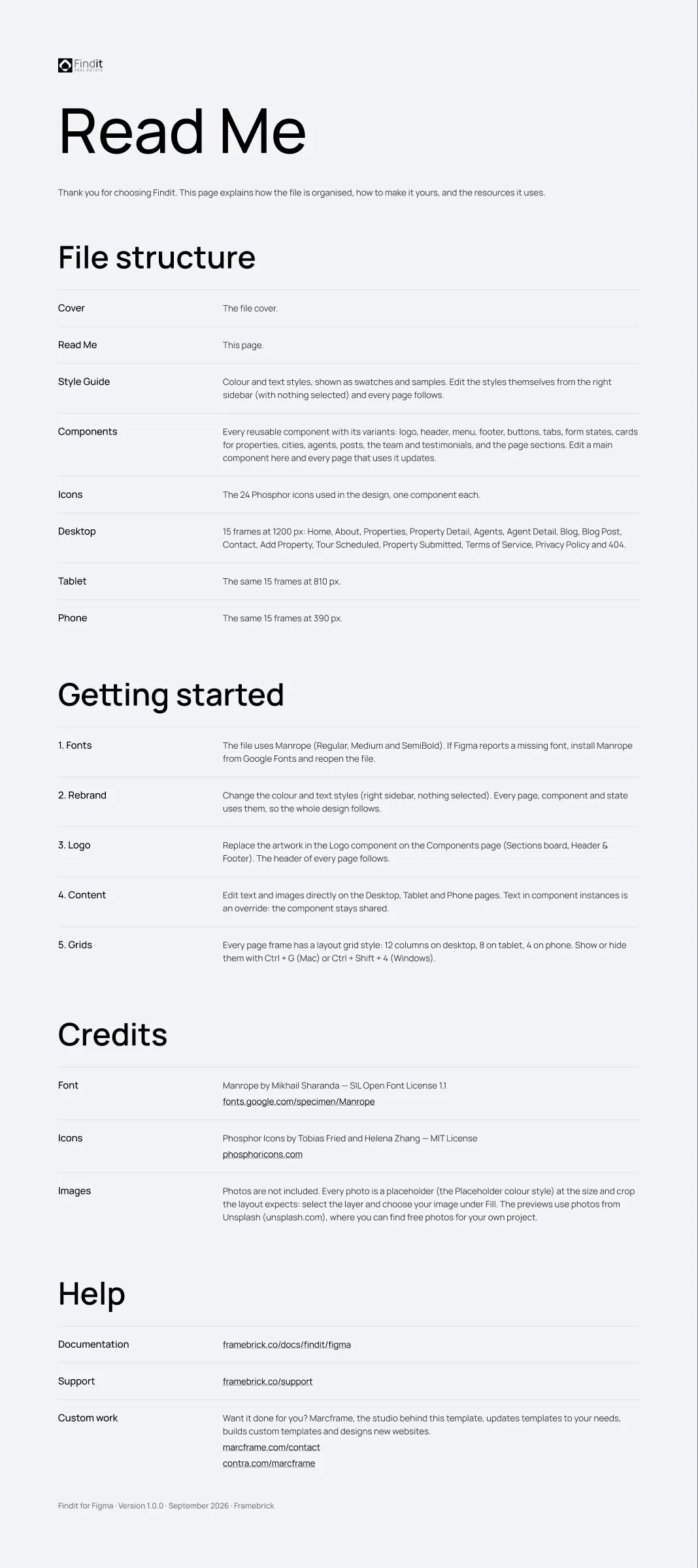
The file uses one typeface: Manrope, in Regular, Medium, SemiBold and Bold. Figma’s browser and desktop apps include Manrope through Google Fonts, so it usually works straight away. If Figma shows a Missing fonts warning, install Manrope on your computer from Google Fonts and reopen the file.
The pages
Section titled “The pages”| Page | What is on it |
|---|---|
| Cover | The file cover |
| Read Me | File structure, getting started, credits and help |
| Style Guide | The colour and text styles, shown as swatches and samples (Colours and text styles) |
| Components | Every reusable component with its variants, on three boards: Sections, Cards & Elements, Property List Section (Components) |
| Icons | The 24 Phosphor Icons used in the design (MIT licence), one component each |
| Desktop | The 15 page frames at 1200 px |
| Tablet | The same 15 frames at 810 px |
| Phone | The same 15 frames at 390 px |
Page frames
Section titled “Page frames”Each breakpoint page holds the frames in site order, named <Page> - <Breakpoint>:
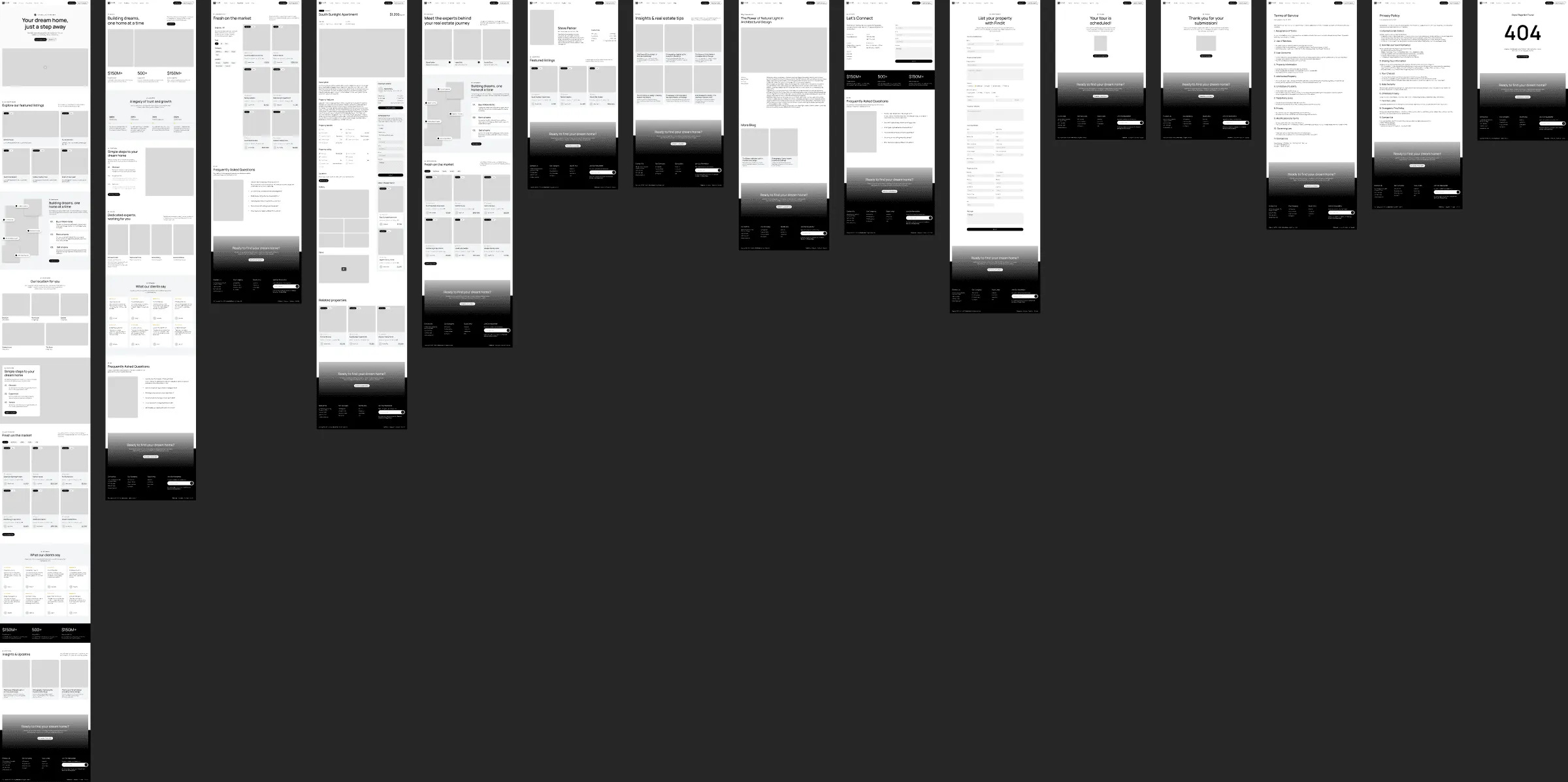
| Frame | Page of the site |
|---|---|
| Home | Home |
| About | About |
| Properties | All properties with the filter card; the pages for a type, location or category look the same |
| Property Detail | One property: gallery, details, video, the tour form, the agent and related properties |
| Agents | All agents |
| Agent Detail | One agent with their contact details and properties |
| Blog | Blog overview |
| Blog Post | One article |
| Contact | Contact details and the contact form |
| Add Property | The “list your property” form |
| Tour Scheduled, Property Submitted | The thank-you pages after the tour form and the “Add property” form |
| Terms of Service, Privacy Policy | The legal texts |
| 404 | Page not found |
Frame widths are the breakpoints the design is built for — Desktop 1200 px, Tablet 810 px, Phone 390 px — and each frame has a matching layout grid (hidden by default; see Colours and text styles).
Finding things
Section titled “Finding things”- Pages list (top of the left sidebar): jump between the pages above.
- Layers panel (
Alt/Option + 1): frames and layers are named after what they are — “Header”, “Footer”, “Property Card”, “Post Card”. - Assets panel (
Alt/Option + I): every component with a short description, ready to drag onto a frame. - Right-click a component → Go to main component to jump from a page to where the component is defined.
Before you change anything
Section titled “Before you change anything”Duplicate the frames you are about to rework (Ctrl/Cmd + D) or save a named version (File → Save to version
history), so you can always compare with the original design.