Pages and sections — Cerette HTML
Cerette has 11 kinds of page and 32 addresses in its sitemap; each page is one HTML file whose <main> holds its
sections, top to bottom.
This guide lists every kind of page with its sections, says where its words and photos are, and explains how the pages link to each other, the header and what search engines see. To change a section, find its words in the file and edit them there (Editing the site).
The pages
Section titled “The pages”| Page | File | Blocks in <main> |
|---|---|---|
| Home | index.html |
13 (10 sections, 3 rulers) |
| About | about.html |
5 |
| Projects | project.html |
4 (3 sections, 1 ruler) |
| Project (one per project) | project/<slug>.html (6) |
6 (5 sections, 1 ruler) |
| Services | service.html |
5 (4 sections, 1 ruler) |
| Service (one per service) | service/<slug>.html (6) |
3 (2 sections, 1 ruler) |
| Blog | blog.html |
1 |
| Post (one per post) | blog/<slug>.html (12) |
4 (3 sections, 1 ruler) |
| Contact | contact.html |
1 |
| Legal | legal/privacy-policy.html, legal/terms-of-service.html |
1 |
| Page not found | 404.html |
1 |
A ruler is a thin row of tick marks between two sections (<div aria-hidden="true">), a piece of decoration. Every page
also has the header and the footer, copied into each file. Photos are in assets/images/, named after their place
(project-<slug>.jpg, service-<slug>.jpg, post-<title>.jpg); Editing the site lists them with their
sizes. The style guide (style-guide.html) is a page of its own, linked from nowhere.
The maps below outline each section of a page and name it, with the file that holds its text in the Astro and Next.js
editions (src/components/sections/…, labels from the Astro edition). In this edition the box is simply the matching
block inside <main> of the page file, counted from the top, and its text is in the HTML. The rulers are not outlined.

- The hero: the window’s height, a video under a dark veil, the label “Welcome Cerette”, a line, the title “Building timeless architecture and modern spaces for future living”, “Book a call” and “Our Services”. The title and the line appear character by character (Editing the site).
- “About us”: three figures (“275+ Projects Completed”, “18+”, “98%”), the title, a paragraph, three points,
“More about us” and “Our works”, and a photo (
home-about.jpg). - A ruler.
- “Our Projects”: the title, a line, “All Projects” and the six projects as cards (photo, title, category / year).
- The quote band: the founder’s quote, portrait, name and role over a photo (
home-quote.jpg). - “Our Services”: the title, a line and the services switcher: on desktops the titles as tabs with one large photo, on tablets the tabs and a card with the photo, on phones an accordion (Editing the site).
- A ruler.
- “Why Cerette”: the title, a line, six reasons with an icon each, and a photo (
home-why.jpg). - The call to action: “Let’s create architecture that inspires and endures”, a line and “Schedule Consultation”
over a photo (
home-cta.jpg). - “Our Achievements”: four figures, the table of six awards (number, title, category and year, text) and three
photos (
home-award-1.jpgto-3.jpg). - A ruler.
- “Client Experiences”: the title and the six testimonials (quote, portrait, name, role and year, rating) in one, two or three columns.
- “Latest Insights”: the title, a line, “All Articles” and the three newest posts as cards.
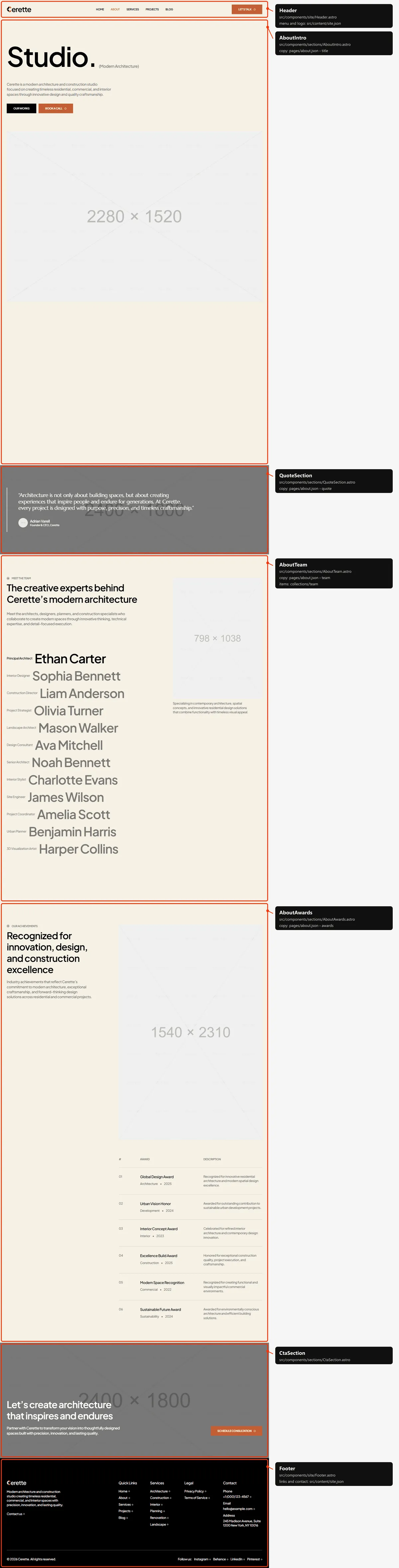
- The title: “Studio.” with “(Modern Architecture)”, a lead, “Our Works” and “Book a call”, a large photo
(
about-hero.jpg), a statement in three paragraphs and four figures. - The quote band, as on Home.
- “Meet The Team”: the title, a line and the twelve people: on desktops a list of names beside the portrait of the one pointed at; on tablets and phones a grid of six that grows as you scroll (Editing the site).
- “Our Achievements”: the title, a line, a photo (
about-award.jpg) and the table of six awards. - The call to action.
Projects
Section titled “Projects”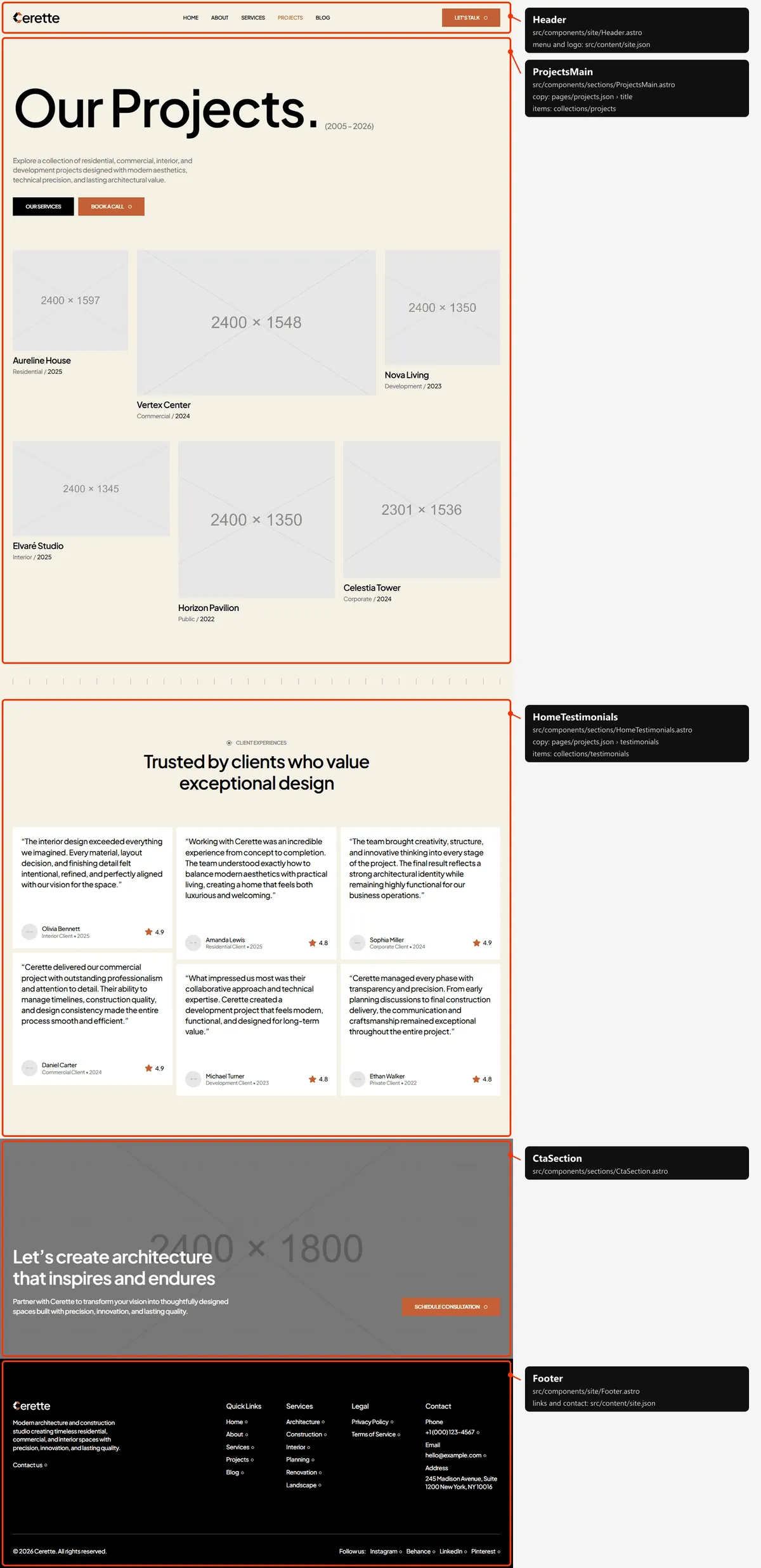
- The title and the projects: “Our Projects.” with “(2005 - 2026)”, a lead, “Our Services” and “Book a call”, then the six projects as cards.
- A ruler.
- “Client Experiences”: the testimonials, as on Home.
- The call to action.
Project
Section titled “Project”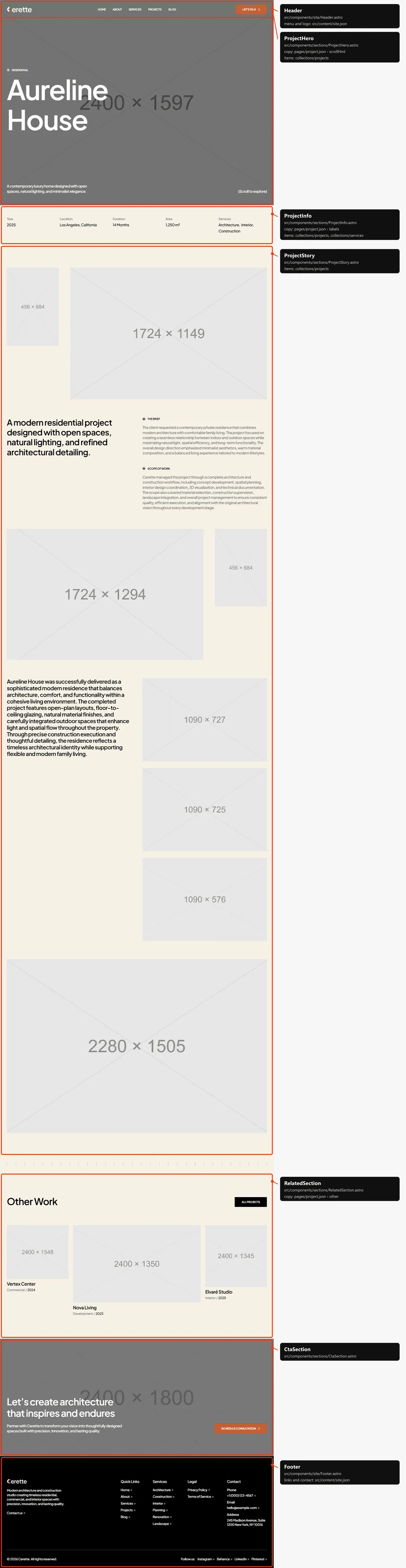
- The hero: the window’s height, the cover under a dark veil, the category, the title, the summary and “(Scroll to explore)”.
- The details: Year, Location, Duration, Area and Services (each a link to its page).
- The story: the opening line, four photos (two of them stay in place while the text beside them scrolls), “The Brief”, “Scope of Work”, the result text beside three gallery photos, and the result photo.
- A ruler.
- “Other Work”: the first three other projects of the list as cards (Aureline House, Vertex Center and Nova Living, or the next one when the page is one of them) and “All Projects”.
- The call to action.
Services
Section titled “Services”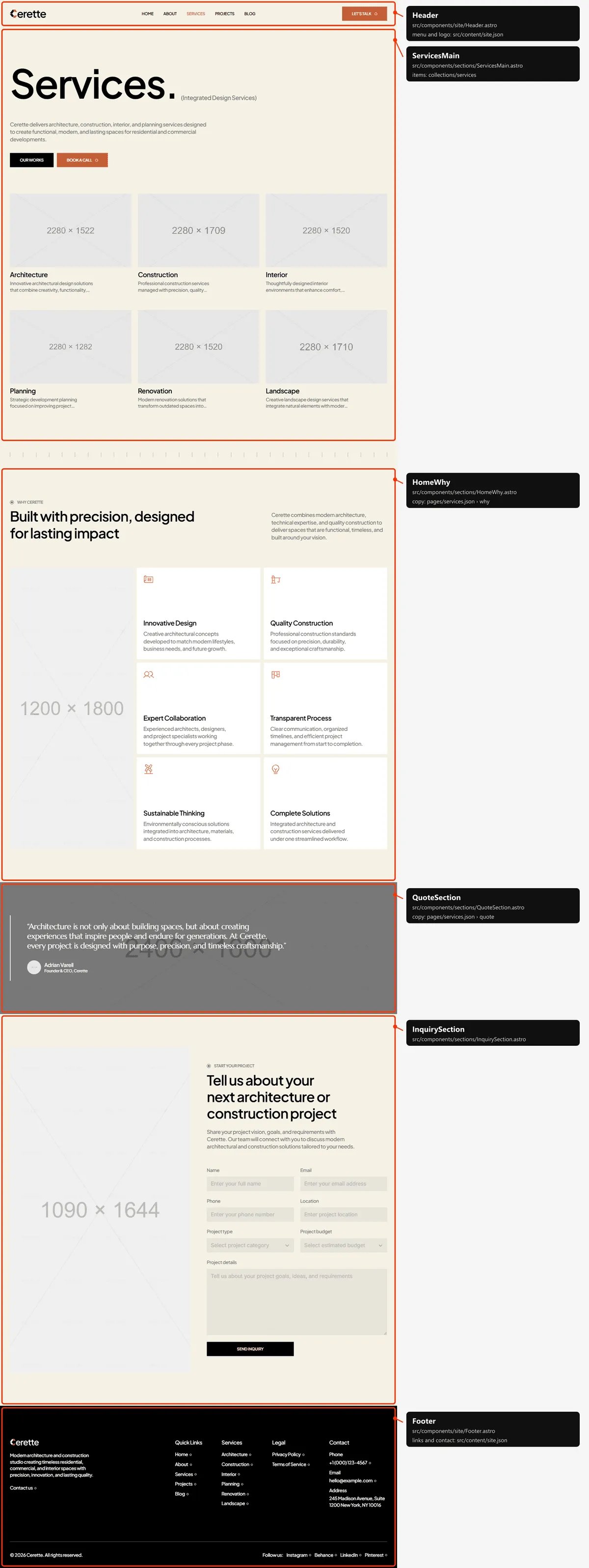
- The title and the services: “Services.” with “(Integrated Design Services)”, a lead, “Our Works” and “Book a call”, then every service as a card (photo, name, summary, “View Details”).
- A ruler.
- “Why Cerette”, as on Home.
- The quote band, as on Home.
- The inquiry block: “Start Your Project”, the title, a line, a photo (
inquiry.jpg) and the inquiry form (Forms).
Service
Section titled “Service”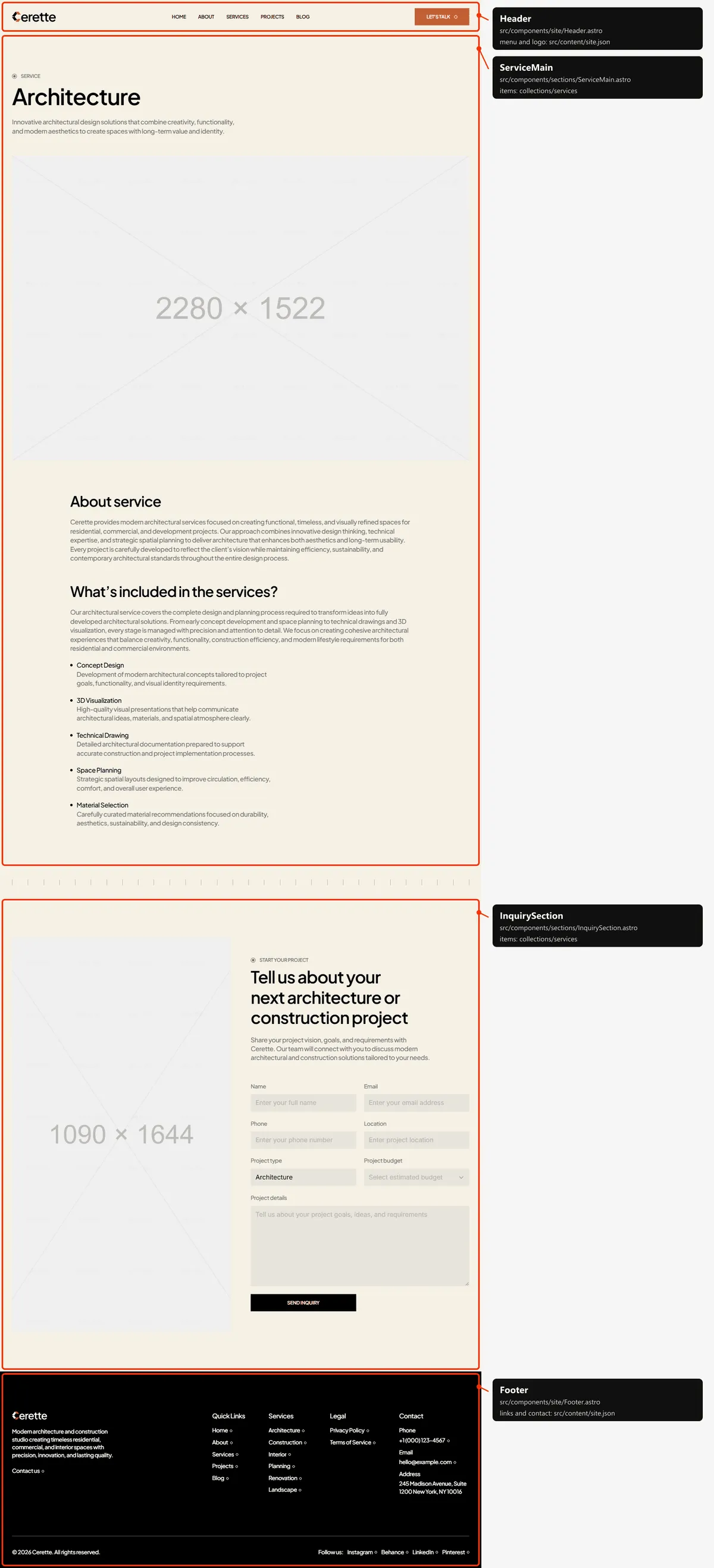
- The service: “Service”, the name, the summary, the photo (
service-<slug>.jpg), “About service”, and “What’s included in the services?” with a text and five deliverables (a title and a text each). - A ruler.
- The inquiry block, with the service’s name already in Project type.
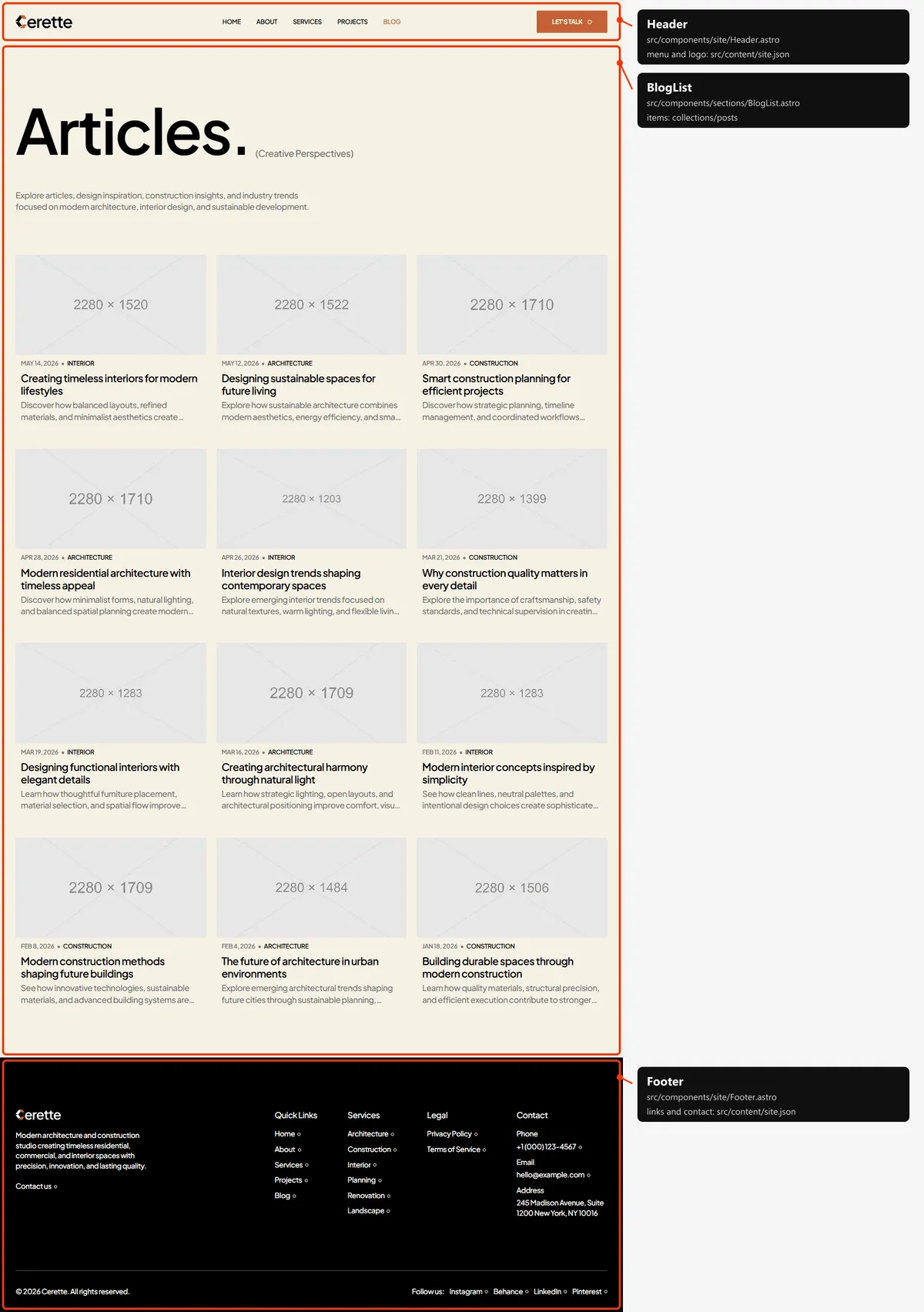
One section: the title “Articles.” with “(Creative Perspectives)”, a lead and every post as a card (cover, date, category, title, excerpt), newest first. Desktops show six cards when the page opens, tablets and phones four; more appear each time the spinner under them comes near the screen.
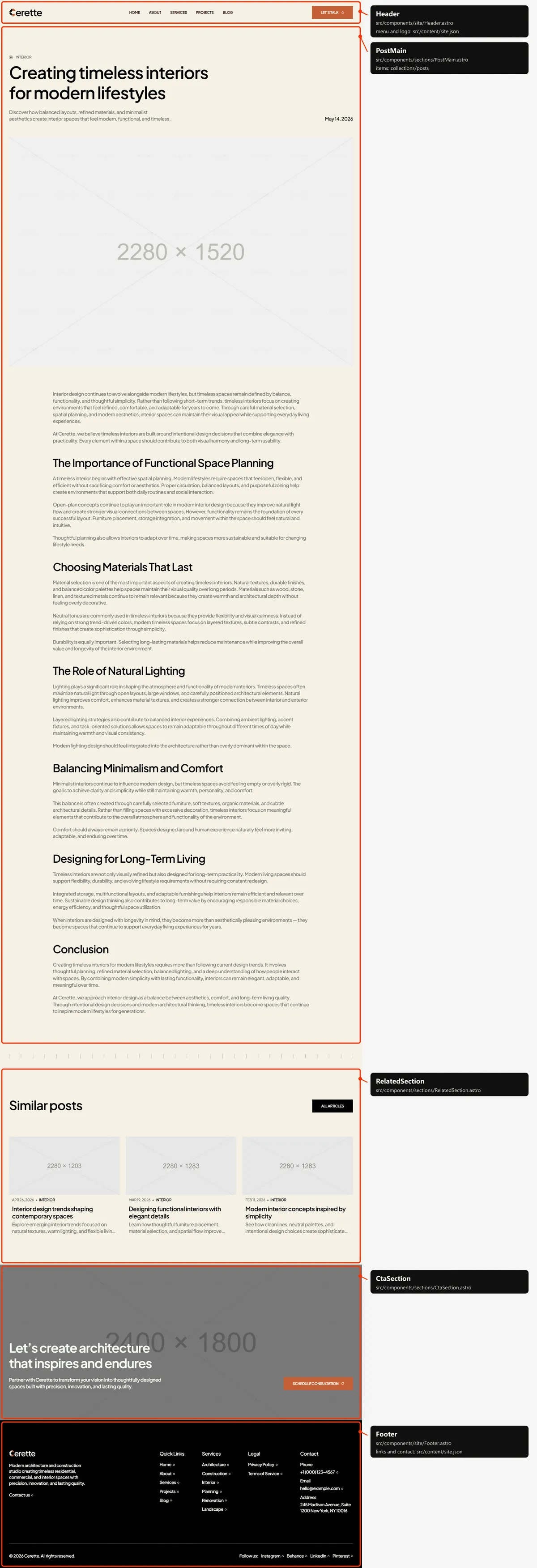
- The article: the category, the title, the excerpt, the date, the cover, then the text: paragraphs and headings.
- A ruler.
- “Similar posts”: three other posts of the same category, newest first, and “All Articles”.
- The call to action.
Contact
Section titled “Contact”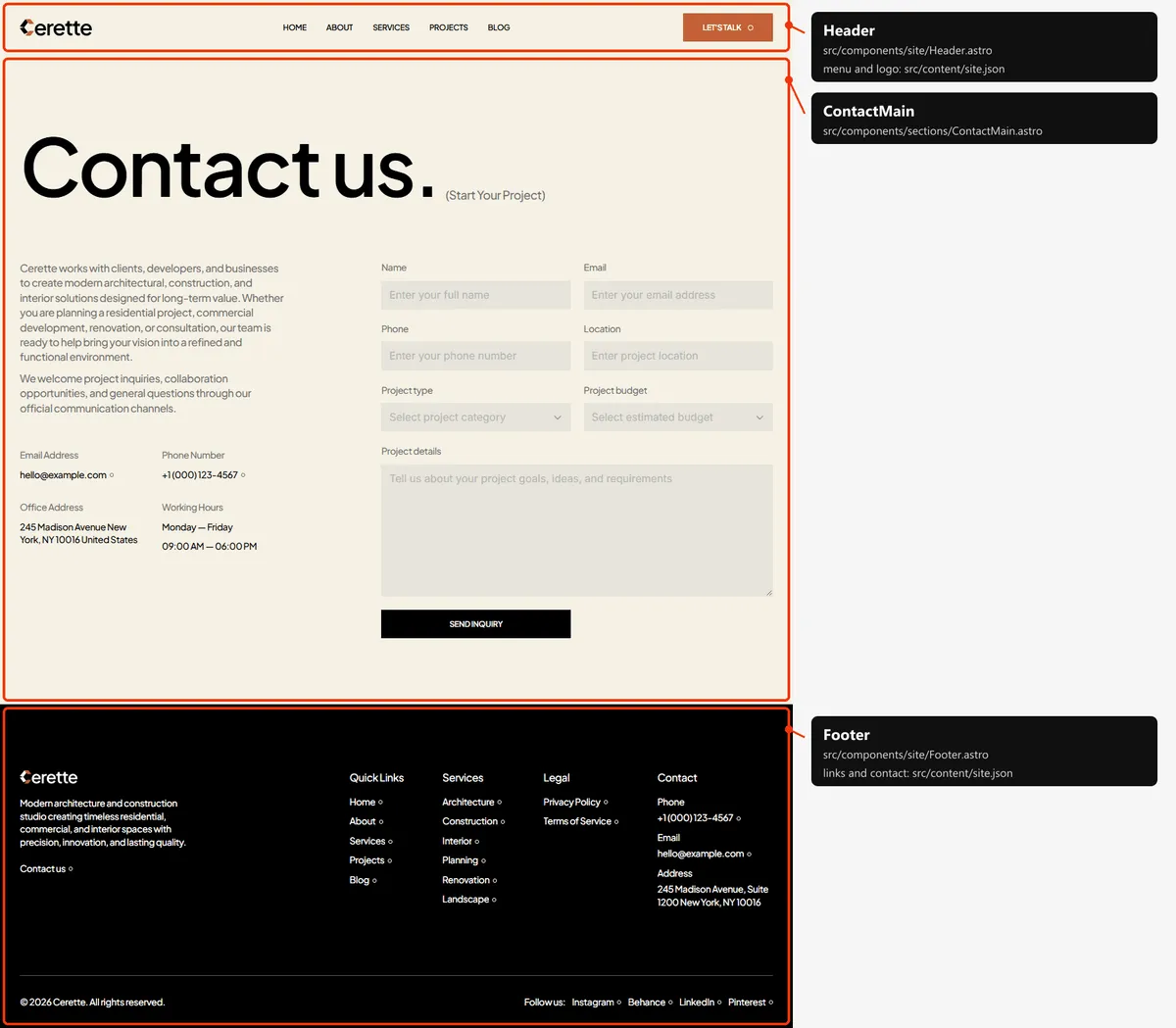
One section: the title “Contact us.” with “(Start Your Project)”, two paragraphs, the e-mail, phone, address and working hours, and the inquiry form (Forms).
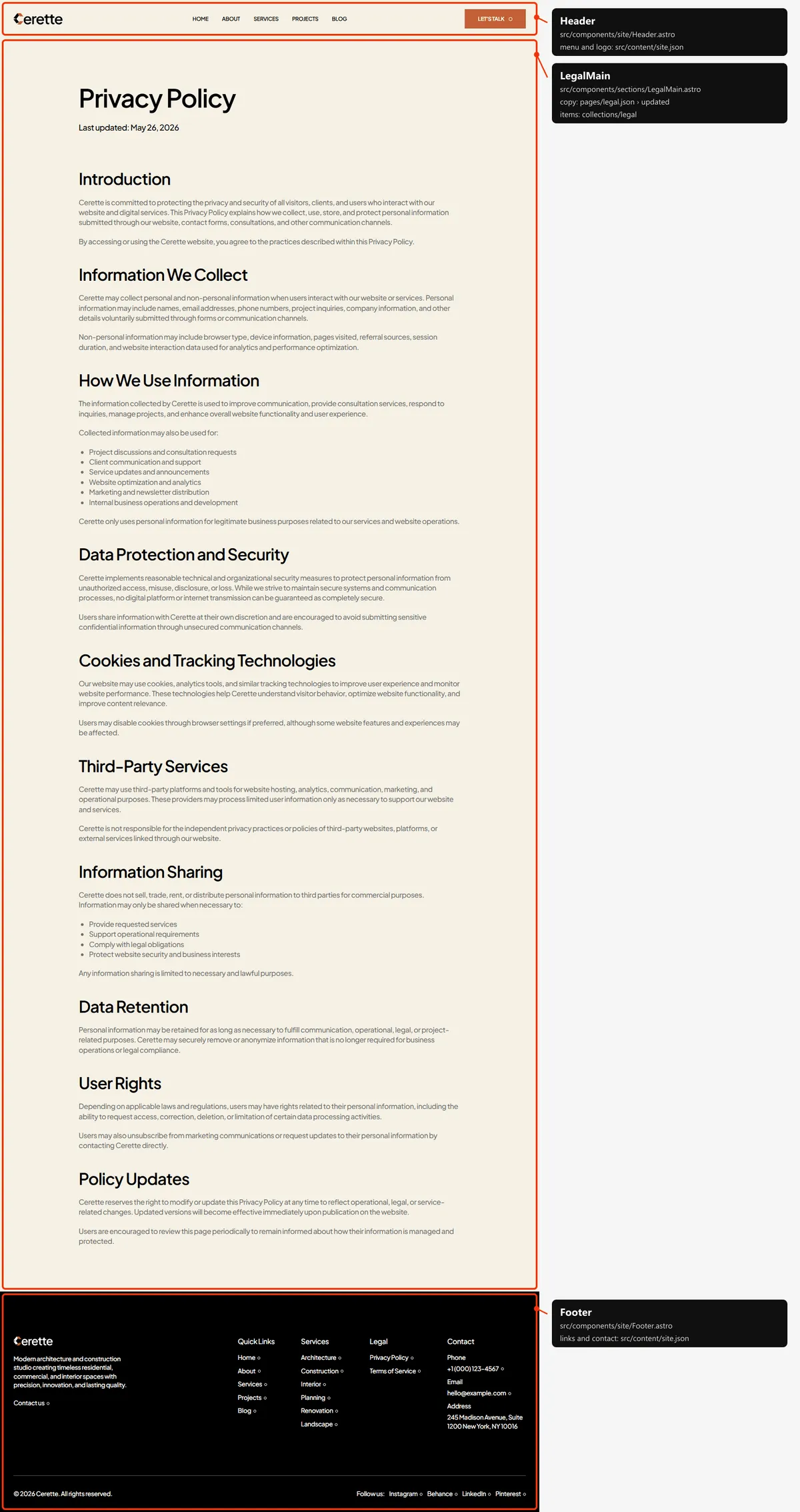
One section: the title, “Last updated:” with the date, and the text (headings, paragraphs, bulleted lists).
Page not found
Section titled “Page not found”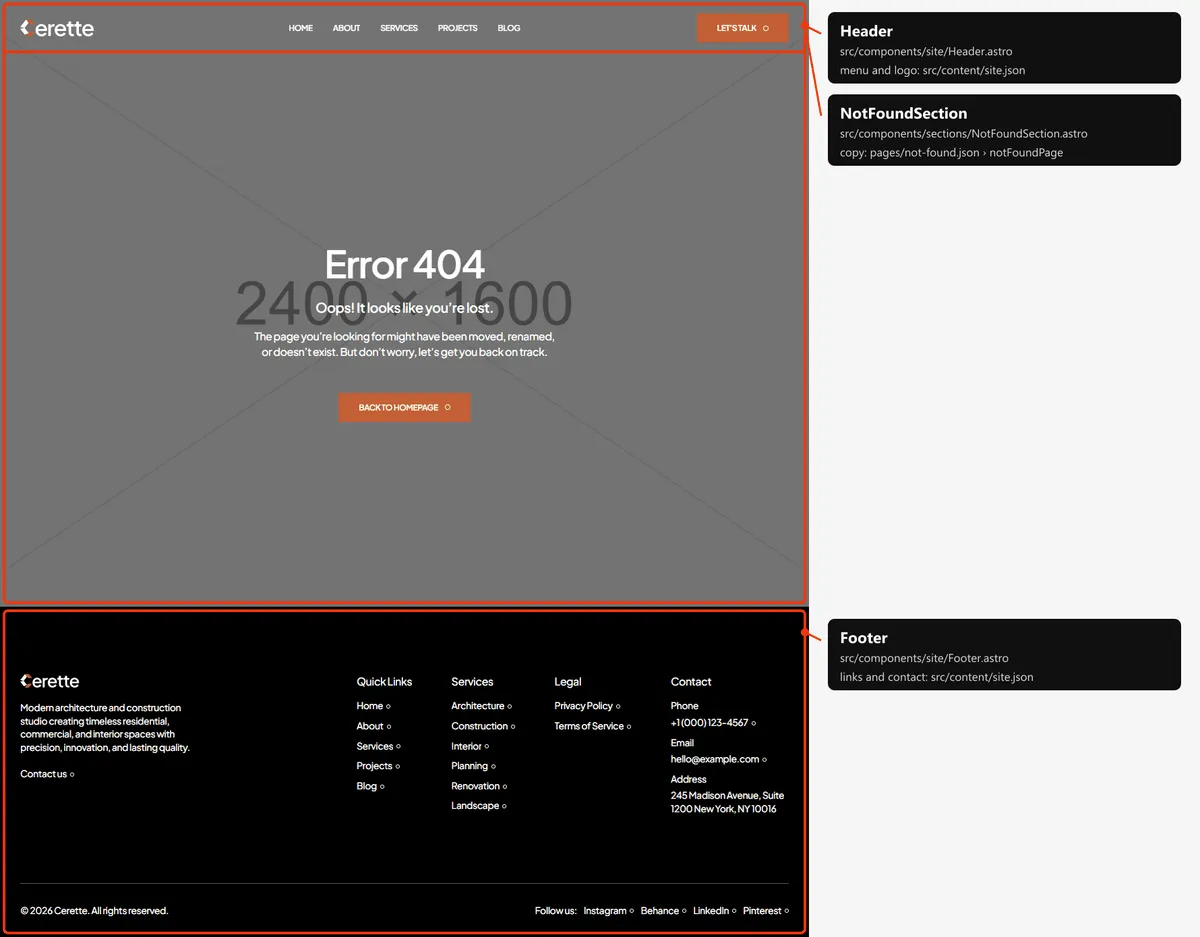
One section over a full-window photo (not-found.jpg): “Error 404”, “Oops! It looks like you’re lost.”, a line and
“Back to homepage”. Its links and images start at the site’s root (/index.html, /assets/…), because hosts show it at
any address (Going live).
How the pages link to each other
Section titled “How the pages link to each other”The menu holds Home, About, Services, Projects and Blog, and the “Let’s talk” button (to Contact); the logo leads Home. The footer holds the logo, a line and “Contact us”, then Quick Links (Home, About, Services, Projects, Blog), Services (the six services), Legal (the two legal pages), Contact (phone, e-mail, address), the copyright line and “Follow us:” (Instagram, Behance, LinkedIn, Pinterest). The other pages are reached like this:
| Page | Linked from |
|---|---|
| A project | Its card (Home, Projects, “Other Work”) |
| A service | Home’s switcher (“More details”), its card on Services, a project’s details, the footer |
| A post | Its card (Home, Blog, “Similar posts”) |
| A legal page | The footer |
“Let’s talk” and “Contact us” lead to Contact; “Our Services” to Services; “Our Works”, “Our works” and “All Projects” to Projects; “More about us” to About; “All Articles” to Blog; “Back to homepage” to Home. “Book a call” and “Schedule Consultation” open the booking page. The style guide is linked from nowhere.
The header
Section titled “The header”- Over a cover (Home, a project): the header is transparent with a white logo and links. When the top of the next
section (marked
data-header-switch) reaches the middle of the window, it fades to the page colour and turns black; it turns back above that point. On the 404 page it stays transparent over the photo (data-header-cover). - Every other page: the header is fixed at the top, on the page colour.
- Desktop and tablet: the logo on the left, the links in the middle, “Let’s talk” on the right; the labels roll on hover. Phone: the logo and a menu button with three lines.
- The phone menu. The lines cross into an X and the bar grows downwards, turning white, with the links and “Let’s talk”. It closes when the button or a link is pressed, when the visitor presses Escape and when the window grows to tablet width.
- The current page. Its link is brown and carries
aria-current="page", which screen readers announce (project, service, post, legal and contact pages mark none).
Search engines
Section titled “Search engines”- Sitemap:
sitemap.xmllists the six main pages (Home, About, Projects, Services, Blog, Contact), the 6 projects, the 2 legal pages and the 12 posts (with their dates), and the 6 services: 32 addresses. The 404 page and the style guide are left out. It is a plain file: add or remove a line when you add or remove a page, and put your domain in it. - Robots:
robots.txtallows everything and points at the sitemap; put your domain in itsSitemap:line. - Per page: every page has a title, a description, a canonical link, an
og:urland a share image in its<head>. Titles end in| Cerette, except Home and five long post titles; a project’s title is its name, a service’s its name, a post’s its title. Posts are shared as articles (og:typearticle, with their date and category). Every page sharesopengraph-image.png. - Not indexed: the style guide (
noindex, nofollow) and the 404 page (noindex).